How to ask for technical support
NextGen has an integrated function for sending technical support requests. To access this function, simply click on the "Ask for support" button in the top bar of the program, under the "Help" category:

If your support request concerns the inability to open a file, note that "Ask for support" works also without an opened file. More info are available at the end of this article.
When the button is pressed, the help request window is shown:
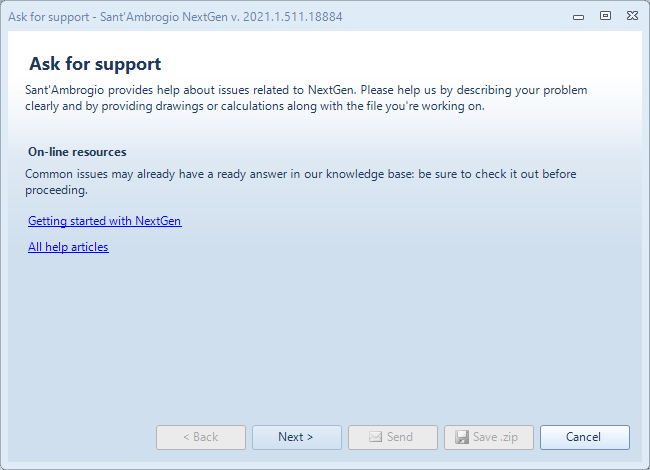
The first step is to check if the answer to your question is present in the support articles on this site. The links to access the NextGen basic guide and the list of support articles are present on the screen. If the answer is not found, press Next to continue.
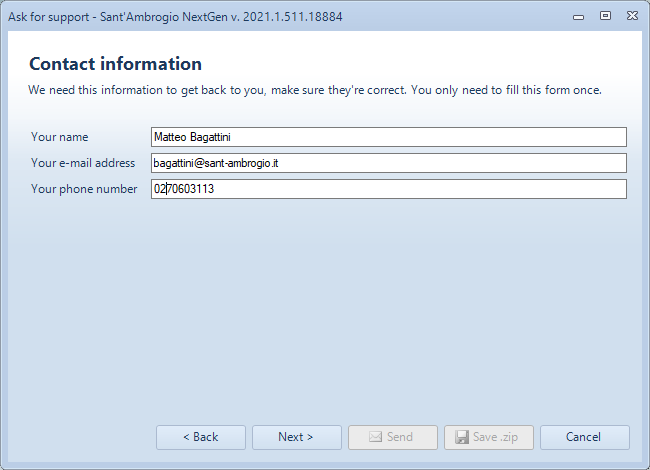
Fill in your contact information here. This information is stored, so you only need to fill it during the first support request.
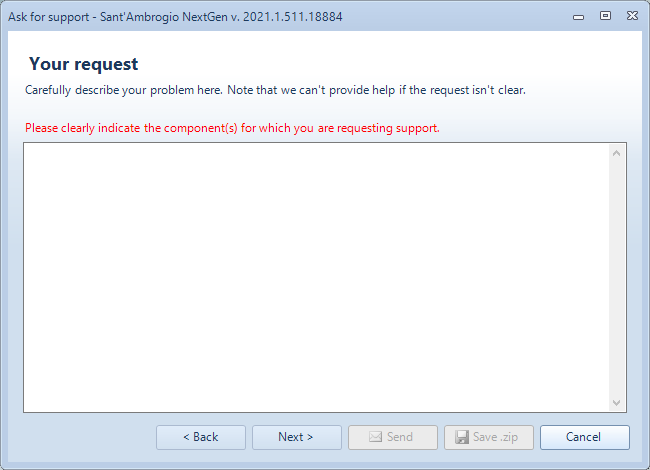
This screen prompts you to describe the reason for your support request. To obtain a quick and effective response, it is essential to clearly describe:
what is the problem you are encountering
how to reproduce the problem
on which component the problem is encountered
Remember that those who analyze the assistance ticket do not know the history of your calculation: they must quickly understand what it is and find a solution. A clear description drastically reduces response times, for example avoiding requests for clarification from us.
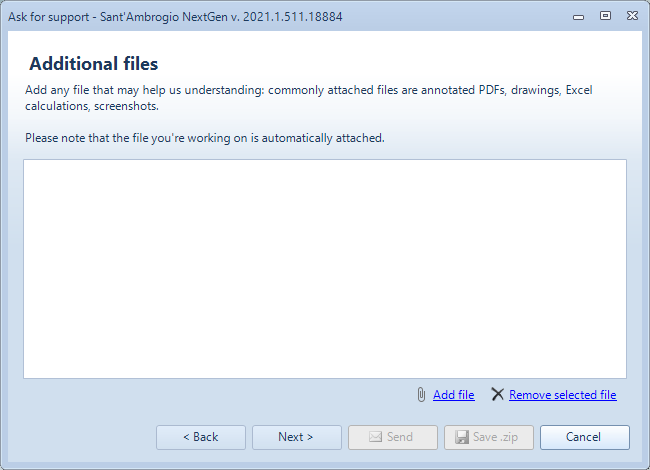
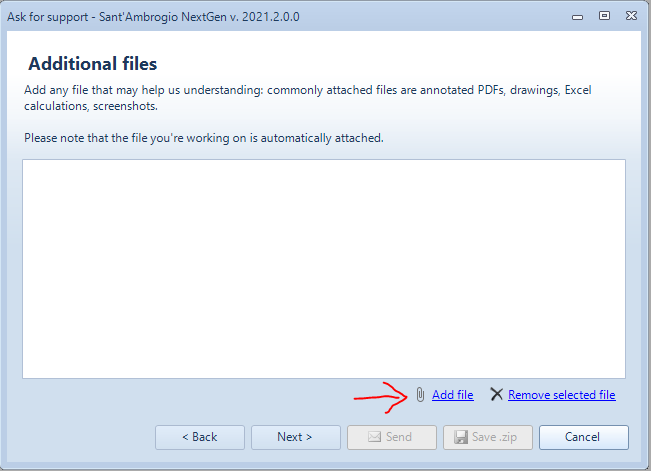
In the next screen you can attach additional files.
Warning: as indicated, the NextGen item you are working on is automatically attached
It is possible to attach PDF or Autocad drawing files, Excel files in which a calculation has been analyzed to be taken as a comparison, screenshots. In general, any additional material that can help pinpoint the problem is welcome.
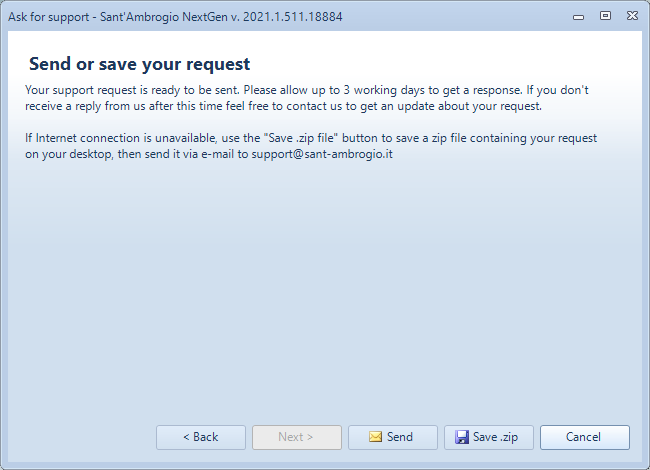
The last step allows the request to be sent to our servers. In case of connection failure, the program saves a ZIP file on the desktop; you must manually send an email to support@sant-ambrogio.it attaching this file to start the assistance. The same operation can be performed manually by clicking on Save .zip instead of Send.
Shortly after submission, you will receive at the address indicated above a confirmation of our receipt of your request, which has been assigned a ticket number. If you don't get this message, it means something went wrong and we probably haven't received your request. Try again, saving the .zip file at the end of the procedure and manually sending it by e-mail.
Why we ask to use “Ask for support” instead of e-mail or telephone
Support requests often go through other media, such as e-mail. In this case, the user usually adds the SIT file or a PDF of the item as an attachment in an e-mail message, or, worse, to send only screenshots.
This road, although practicable, is not recommended for the following reasons:
Sending emails to the generic support address does not automatically provide all the information required. To properly analyze a technical issue, several data are essential and are automatically collected by the integrated support system, such as the item file, program logs, any custom user databases, as well as license and system information. Without these elements, the diagnosis may be incomplete or even impossible.
Requests sent via email or private messages do not guarantee proper handling. It cannot be ensured that the message reaches the most suitable person to deal with that specific issue; moreover, the recipient may be unavailable, resulting in the request being left unattended or significantly delayed.
When a customer submits a request by email, the message is automatically imported into our ticketing system. During this conversion, all original formatting is lost: highlighted or underlined text, bulleted or numbered lists, indentation, and other formatting elements—often essential for correctly understanding the content—are not preserved. As a result, requests that are perfectly clear in the original email may become difficult to read or even ambiguous when viewed by our support team.
Phone support is not suitable for handling technical issues. Although phone calls are understandably the fastest communication channel with very short response times, they should be limited to simple, informational requests (for example, the availability of specific features). When a technical problem is involved, phone support does not allow the structured collection of all data required for proper analysis; for this reason, in most cases the support team will still ask the customer to submit the request through the integrated Ask for Support service, which is the correct tool for effective and traceable request handling.
I can't open the file for which I need to request assistance
Once the program starts, the "Projects browser" window is displayed. Projects Browser has the same "Ask for support" button, that allows you to begin an assistance request without opening a file:

If you are receiving errors opening a file, please attach it when prompted:
Have you tried recovering a previous automatic backup? Check this article to know how to
How to request assistance by e-mail
There are cases in which the request must necessarily go through an e-mail message: for example, NextGen may be installed on a computer disconnected from the Internet, or the server receiving support requests may not be available. In these cases, the procedure is as follows:
Create the request using the “Ask for support” function as illustrated above
At the end, instead of clicking on the "Send" button, click on the "Save .zip file" button
A "Sant’Ambrogio Support Request.zip" file will be created on the Desktop containing all the information necessary for the assistance service
Send the file on your desktop to support@sant-ambrogio.it
Finally, if the request cannot go through NextGen since it is the opening of the program itself that creates problems, it is of course possible to send the request by e-mail, possibly accompanied by a screenshot of the error, to support@sant-ambrogio.it